Custom AI Background Generator: Scenes, Products & Calls

By Alex Morgan
MyClaw Editorial
MyClaw
Run Best-in-Class AI Agents Now
Run OpenClaw or Hermes Agent on managed MyClaw hosting, so your AI agent stays online, updated, and ready for real work.
AI Takeaway
- What does a custom AI background generator do? It builds a background you specify — by prompt, preset, or reference — instead of shuffling a random tile. Common jobs are prompted call scenes, product or portrait photo swaps, and guided subject-into-scene composites.
- Which MyClaw tool fits a prompted call scene? Use the Virtual Background Generator for 16:9 Zoom / Teams / Meet rooms (1536×864): pick a ready room or describe lighting and empty headspace for a live silhouette.
- What does “free” mean on MyClaw? Guests can try limited image generation without a credit card; more runs need an AI Chat plan — not forever unlimited. Check live limits on AI Chat pricing.
- When should you pick a photo-swap compositor instead? Use Photoroom-, Firefly-, or Musely-style tools when you already have a product or person cutout and need a new scene blended behind that subject.
- How is this different from a random background generator? Random tools favor shuffle, CSS patterns, or placeholder APIs. Custom tools favor a written brief or an uploaded subject.
MyClaw Virtual Background Generator
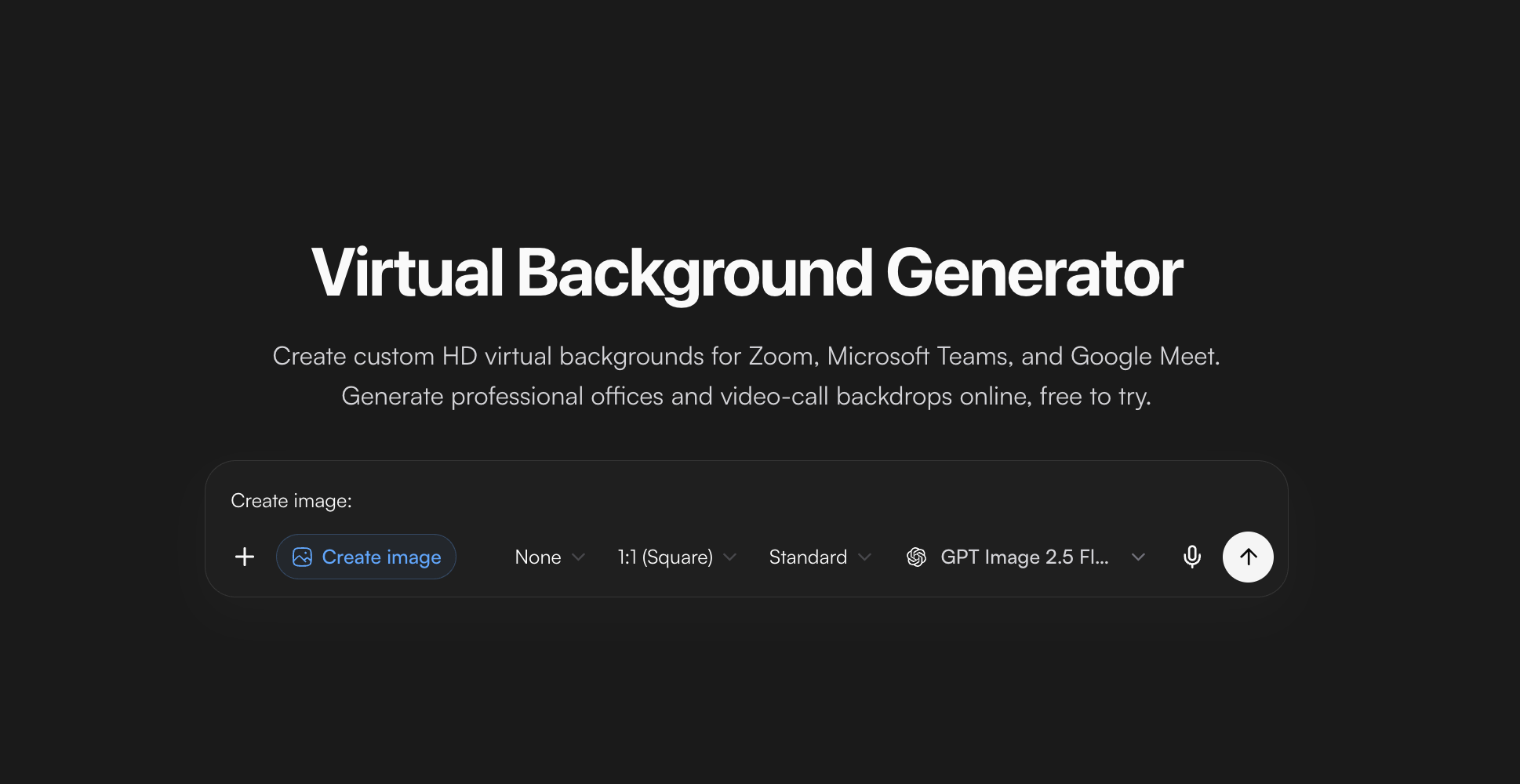
A custom AI background generator should follow a brief you wrote — room type, lighting, empty headspace — not a lucky shuffle. MyClaw’s Virtual Background Generator builds 16:9 HD plates (1536×864) for Zoom, Teams, and Meet: pick a ready meeting room or describe office, studio, classroom, or café lighting with clear space for the person on camera. That is intentional customization for live silhouettes, not a product cutout pipeline.
Honest gap: MyClaw is not a dedicated e-commerce compositor. If jagged SKU edges on a new studio floor are the costly failure, prefer a Photoroom-style product tool. Prefer MyClaw when you need a prompted empty scene you sit in front of live.
How to Create a Custom Background in MyClaw
- Open the Virtual Background Generator; pick a ready room or write the lighting, mood, and empty headspace you need.
- Generate, then refine the prompt if furniture, colors, or headspace miss the brief.
- Download the 16:9 plate into Zoom / Teams / Meet background settings; continue under AI Chat pricing if the guest allowance is used.
Pros:
- Prompted 16:9 call scenes with ready rooms and free-text briefs
- Limited guest try without a credit card; clear next step via AI Chat plans
- Camera-ready empty plates sized for live video silhouettes
Cons:
- Not a dedicated e-commerce catalog compositor with one-tap product cutout
- Guest allowance is limited — not forever-unlimited free
Photoroom-Style Product Background Tools

E-commerce “custom AI background” search often means: upload a SKU, remove the old backdrop, and generate a brand-ready studio or lifestyle scene behind the product. Photoroom-style tools lead that job with subject detection, prompt or preset scenes, batch and API paths, and catalog consistency. Prefer this lane when conversion photos and SKU volume matter more than a blank meeting room.
Score free honesty the same way every time — daily caps, export limits, watermark rules, and whether “free” still applies at download. Do not assume a trial credit unlocks commercial catalog rights; check the live plan page before you scale a marketplace season. A/B the same product photo and scene brief so you compare composites, not prompt luck. Keep shadow direction and surface reflections consistent across a SKU set if shoppers will see the items side by side. When the brief is only a blank meeting room with headspace, skip this lane — MyClaw’s Virtual Background empty plate is the shorter path. If you instead need a plain, rule-bound backdrop for ID-style photos rather than a lifestyle composite, see the passport photo guide.
Pros:
- Built for product cutout + on-brand lifestyle or studio scenes
- Strong fit for catalog volume, batch, and marketplace listings
- Prompt or preset paths that keep the subject locked
Cons:
- Overkill when you only need a standalone Zoom or wallpaper plate
- Free tiers and commercial-use rules still need a live check before you scale a catalog
Adobe Firefly and Generative Fill Background Tools

Adobe Firefly / Express-style background generators treat “custom” as edit-in-place: detect the subject, remove or replace the environment, and refine with generative fill, reference images, or partner models. They fit marketers and designers who already live in an Adobe workflow and need precise local edits after the first swap — soft shadows under a bottle, a cleaner horizon behind a portrait, or a branded wall that still matches the original lighting.
Choose them when subject preservation plus iterative fill matters; choose MyClaw’s Virtual Background Generator when a fresh 16:9 call plate is faster than opening a full editor. Re-check current free generative credits and commercial-safety claims on Adobe’s live pages before campaign use — limits and license language change. Treat Firefly as a compositor and retoucher, not as a blank-room generator for live video. If your team already exports from Express into brand kits, staying inside Adobe often beats hopping tools mid-campaign. For professional headshot framing and portrait background polish outside a meeting-room brief, the best AI LinkedIn profile picture generator roundup covers that adjacent job.
Pros:
- Subject-aware remove/replace plus generative fill for fine control
- Familiar path for teams already in Adobe Express / Firefly
- Reference-image and multi-model options for harder composites
Cons:
- Heavier than a one-shot meeting-backdrop brief
- Free generative limits and license terms change — verify before campaign use
Guided Scene Composite Tools (Musely-Style)
Musely-, Morphed-, and similar guided scene tools sit between one-tap product removers and blank text-to-image: upload a person or product, describe the environment, and tune mood, lighting, depth, or aspect ratio while the subject stays grounded. They match “ai custom background” and “custom background ai” when the brief is a full described scene behind an existing subject — a founder in a soft loft, a sneaker on wet asphalt, or a speaker on a stage wash.
Prefer them for portrait or product lifestyle composites with structured controls; prefer MyClaw’s Virtual Background path when the output should be an empty camera-ready room you sit in front of live. Always A/B the same subject photo and scene brief — otherwise you compare prompts, not products. Watch free paths for caps, signup walls, or plan gates at download. If the person must remain photoreal and grounded, guided composites usually beat prompting a full scene from scratch and hoping the face holds.
Pros:
- Upload + describe workflow with mood / lighting / depth-style controls
- Strong match for “drop subject into a custom scene” intent
- Multiple aspect ratios for social, listing, and widescreen needs
Cons:
- Not the same job as a blank Zoom plate reserved for a live silhouette
- Free paths often mean caps, signup walls, or plan gates at download
Custom Vs Random: Pick the Job, Not the Buzzword
“Custom AI background generator” and “random background generator” share the word background and split the SERP. Custom means you specify the scene — prompt, preset, or subject swap. Random means shuffle: CSS/SVG pattern makers, placeholder photo APIs, or one-click variety without a tight brief. MyClaw’s random background generator guide maps that shuffle cluster and when pattern or Picsum-style tools win. This post stays on intentional customization so the two posts do not cannibalize each other.
For a style-narrow creative plate — for example a retro game wall or 8-bit desk scene — stay on the aesthetic brief rather than forcing a call-room tool. Pixel-locked game or UI scenery is a different job from a prompted Zoom plate or a product swap; keep that cluster on its own guide so this page stays on intentional custom scenes. Use the aesthetic sibling when the look is fixed and the brief is narrow; stay here when the job is a custom scene brief, a product cutout, or a live call backdrop.
Conclusion
Match the custom AI background generator to the failure mode you care about. For prompted empty Zoom / Teams / Meet plates, try MyClaw’s Virtual Background Generator first among peers, then continue under AI Chat pricing if you need more runs. For product cutouts and lighting-matched lifestyle swaps, prefer Photoroom- or Firefly-style compositors. For guided subject-into-scene controls, prefer Musely-style tools. Keep random shuffle jobs on the sibling random guide. For pixel-locked game or UI scenery, see the pixel art background guide. Soft next step: open the tool that matches the job, run one honest brief, and only then decide whether a weekly workflow is worth a paid plan.
Skip the Setup, Run Best-in-Class AI Agents Now
Launch a managed OpenClaw or Hermes Agent workspace in minutes, with always-on hosting, updates, and support handled by MyClaw.